What makes an image viewer accessible
Key features for inclusive and user-friendly image viewers
October 14, 2024

At Cogapp, we create websites for museums and archives. Our clients often have large collections of images or documents to display, making image viewers an essential part of the experience. We aim to make our products as accessible as possible, applying WCAG AA standards (Web Content Accessibility Guidelines), and whenever possible, pushing towards the highest level, AAA.
I have done numerous accessibility reviews on image viewers for our clients and recently embarked on a small mission to see how other museums solve the challenges of making image viewers WCAG compliant. I had hoped for inspiration to overcome some of the thornier issues we have come across, but unfortunately, I did not find many well accessibility-designed image viewers.
Image viewers don’t have specialist accessibility rules, and applying WCAG to them is sufficient. But they do pose some very particular challenges. What makes an image viewer accessible partly depends on the type of image. Most of the time, we deal with paintings, drawings, photographs, illustrations, architectural plans, and on occasion even 3D scans. These will need to be described to users who cannot see them. In some projects, we handle images of documents and books, which need transcripts to become accessible.
When we built viewers for the Arabian Gulf Digital Archives and Qatar Digital Library, we integrated optical text recognition to handle documents. We achieved high accuracy, particularly with typewritten documents, but even handwritten older texts were reasonably well transcribed. Including these transcripts in the viewer improves accessibility not only for visually impaired users but provides benefits for everyone. It helps users decipher handwritten documents and it enables searching for specific phrases. These search terms are highlighted both in the transcript and as an overlay on the document itself.

We have written elsewhere about how we built this interface (read more in this post), but in this article, I will focus primarily on making artworks (rather than text documents) accessible through image viewers.
Presenting an image accessibly
I have identified these key areas to make an image accessible in a viewer:
- Alternative text
- Keyboard navigation
- Pointer gestures
- Screen reader compatibility
- Buttons and accessible labels
Alternative text
Alternative text (short alt text) is one of the best known accessibility features for the web. It is a way to provide descriptions for images in a website’s code. Screenreader users will get this description read out to them when they encounter an image. Unfortunately, in a recent review of a dozen image viewers on museum websites, I found that many lacked this basic feature or even its cousin: an image description elsewhere on the page.
There is no one correct way to describe an image; it always depends on the context. For an image viewer, I would advocate for a long description over the more commonly known alt text, which is meant to be short and to the point- just like a user would take an image on a webpage in at a glance in its context. But an image viewer is the place where sighted users take a closer look, where they can zoom in and examine all the details. Here, a longer description is much more appropriate.
The Cooper Hewitt museum has written a very detailed guide for image descriptions.
Keyboard navigation and focus visibility
Every element on a webpage must be accessible via the keyboard. It is crucial that keyboard users always know which element they are interacting with. The focused element should contrast with the image behind it, ideally using a dual frame or inverted colours to ensure maximum visibility with all backgrounds. Keep in mind that if you have focusable elements on top of images, that the images may change, and thus focus colours may lose the required contrast. In image viewers, these elements are often buttons for zooming and moving around the image as well as menu buttons.
One danger that’s frequently overlooked is that modals or menus (like a cookie banner or an options menu) open on top of the webpage and focus moves behind these elements and thus disappears. A handy solution is to ensure that focus gets trapped inside such elements until the user closes them.
Users should be able to navigate and interact with all the elements, including menus, sub-menus, and image controls without using a pointer device (most commonly a mouse).
Here’s an example from the Peck Collection of how it is supposed to work when using keyboard navigation: all items are accessible and operable, and the item that currently has focus is always highlighted.
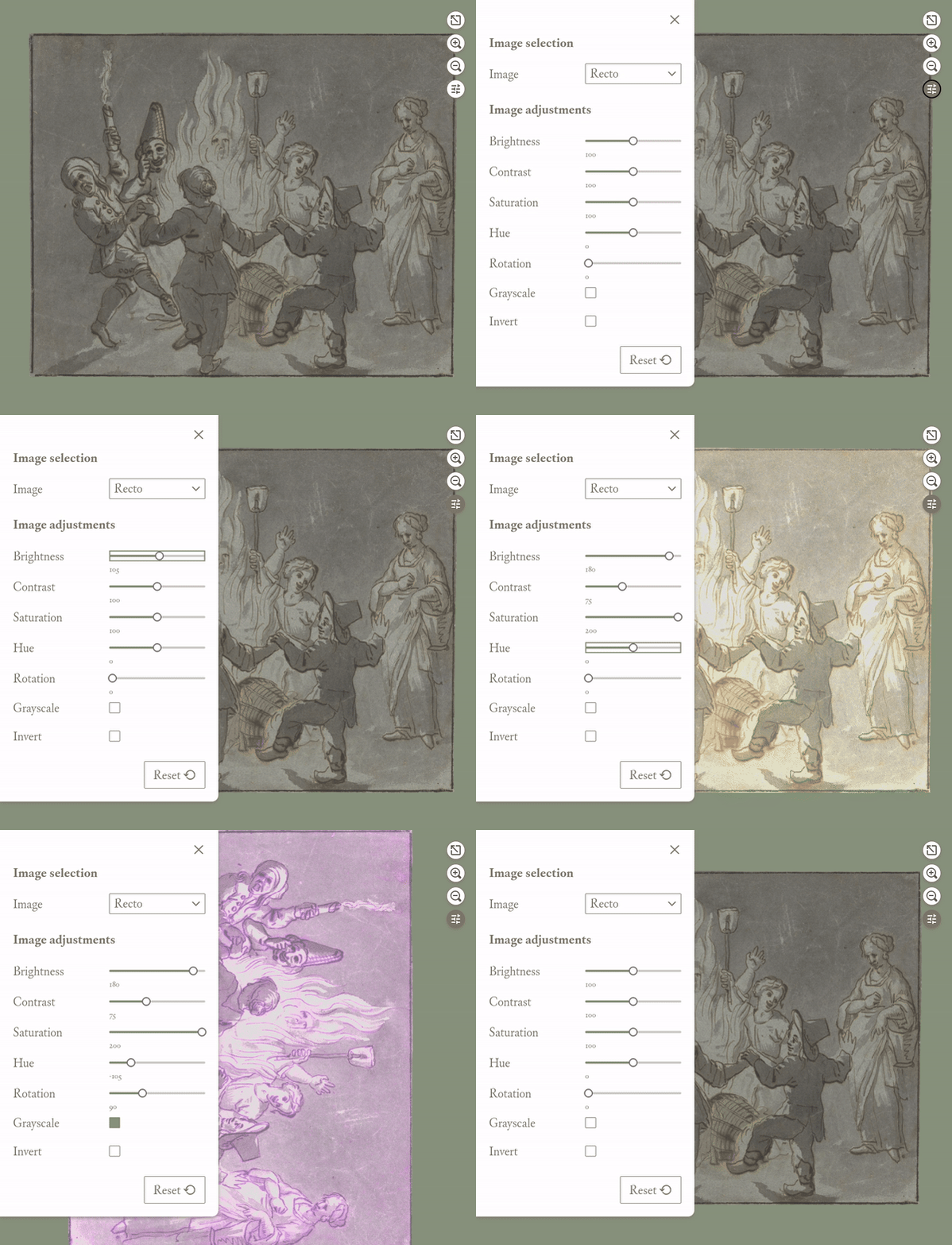
Users must be able to move the image around, and it must be obvious to them how to achieve this. A good practice is to assign shortcut keys like “0” to reset an image to its original position, ‘’+” and “-” to zoom, and arrow keys for panning.
Sliders should be operable with the arrow keys, and input fields must not be missed in the tab order. It is also very annoying if focus shifts away from an element when the user activates it- for example, entering a number in an input field and then pressing return should not reset the focus order and move the user to the top of the page.

Some of the more serious issues I have encountered in my testing include menus that cannot be opened or navigated by keyboard, as well as thumbnails that can’t be activated, making it difficult or impossible to navigate viewers with multiple images.
One easily overlooked issue is scrollable boxes. Many of our websites handle IIIF images, an image format that offers much more than just the visual aspect of an image. IIIF files store a lot of information and can include much text, which we may display in a box that becomes scrollable when the text exceeds a certain number of words or when it is zoomed. Whenever an element has scrollbars (or the potential for scrollbars to appear), it is important to add this element to the tab order. This is the only way for keyboard users to activate the scrolling and access the full text inside.
Pointer gestures
There are users who have no keyboard to interact with a page and can only use their pointer device. They may not be able to perform complex tasks/movements with their device. This could be a mouse, but it also applies to finger gestures on a touchscreen or more specialised inputs like eye tracking or head pointers.
Avoid complex movements
One way to understand the requirements for this user group is to ensure that the image viewer can be operated on a touchscreen with one finger and “reduced gestures”. So, if a viewer utilises path-based gestures (like drawing a shape) or multiple points of contact gestures (like a pinch gesture for zooming in and out), it must provide alternative ways of activating the same controls.
You can either avoid such gestures or simply provide alternative ways of achieving the same functionality. Buttons are a good tool for this: provide a number of buttons to zoom, pan, or rotate the image in addition to the two-finger gestures usually required to achieve such things.
Avoid path-based gestures
Avoid path-based gestures, where not just the endpoints matter, but how the pointer moves between these points. These can pose challenges for users with less precise control, such as those using eye tracking. While image viewers don’t frequently use path-based gestures, I would recommend watching out for sliders. While not technically path-based, they can be tricky to operate depending on how they have been implemented and how accurately a user has to activate them. It’s good practice to offer plus/minus buttons to adjust a value or allow users to enter a number directly.
Screenreaders and labels
Screen reader users vary widely and can include people who are blind, have low vision, or have reading disorders such as dyslexia. Therefore, we need to ensure that image viewers are as accessible as any other page of our site.
Look out for button labels: image viewer buttons often don’t contain text that announces their purpose to assistive technologies (like screen readers); they are more likely to use icons or images, like a magnifying glass for zooming. Therefore, they need to have accessible labels- text that explains what they do and is read out by a screen reader.
When a visible label is present (for example, the word “download” on a download button), the accessible label should either match what is visible or at least begin with the same text. For instance, a “Next” button should have an accessible label like “Next image” rather than “Move to the next image.” This consistency helps those who use voice-activation to access elements reliably.
Also, make sure language tags are present, especially in viewers with content that shifts between languages. This is particularly important for IIIF (International Image Interoperability Framework)-based image viewers, which often come with metadata in multiple languages.
Size of clickable elements
WCAG requirements set a minimum size of 24px for clickable elements for their AA level, but we tend to treat this as an absolute minimum and aim for the enhanced AAA recommendation of 44px minimum wherever feasible. Ensure buttons and interactive elements are large enough to be easily clicked without users accidentally triggering adjacent buttons.
By paying attention to these details, we can ensure that our image viewers are accessible to all users, regardless of their abilities or the devices they use. Accessibility isn’t just about meeting standards- it’s about ensuring equal access to content for everyone.